Modeling Creation Tips
Extra modeling information for things to watch out for and check with your meshes.
Face Orientation
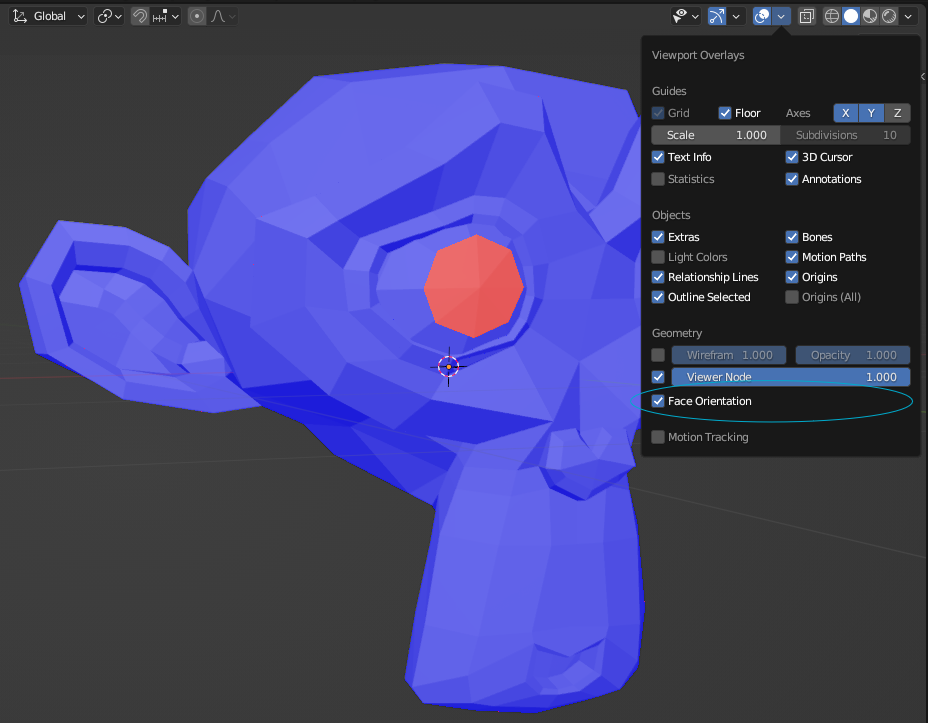
The way a face is pointing can determine how the model can be interacted with. This is usually the cause of when players get caught or stuck on objects in game.
You can enable Face Orientation view in the Viewport Overlays dropdown. The blue colored faces are facing outwards, while red colored faces are facing inwards. In the game a red colored face could be passed through, while a blue one will not be passed through.
Checking Normals
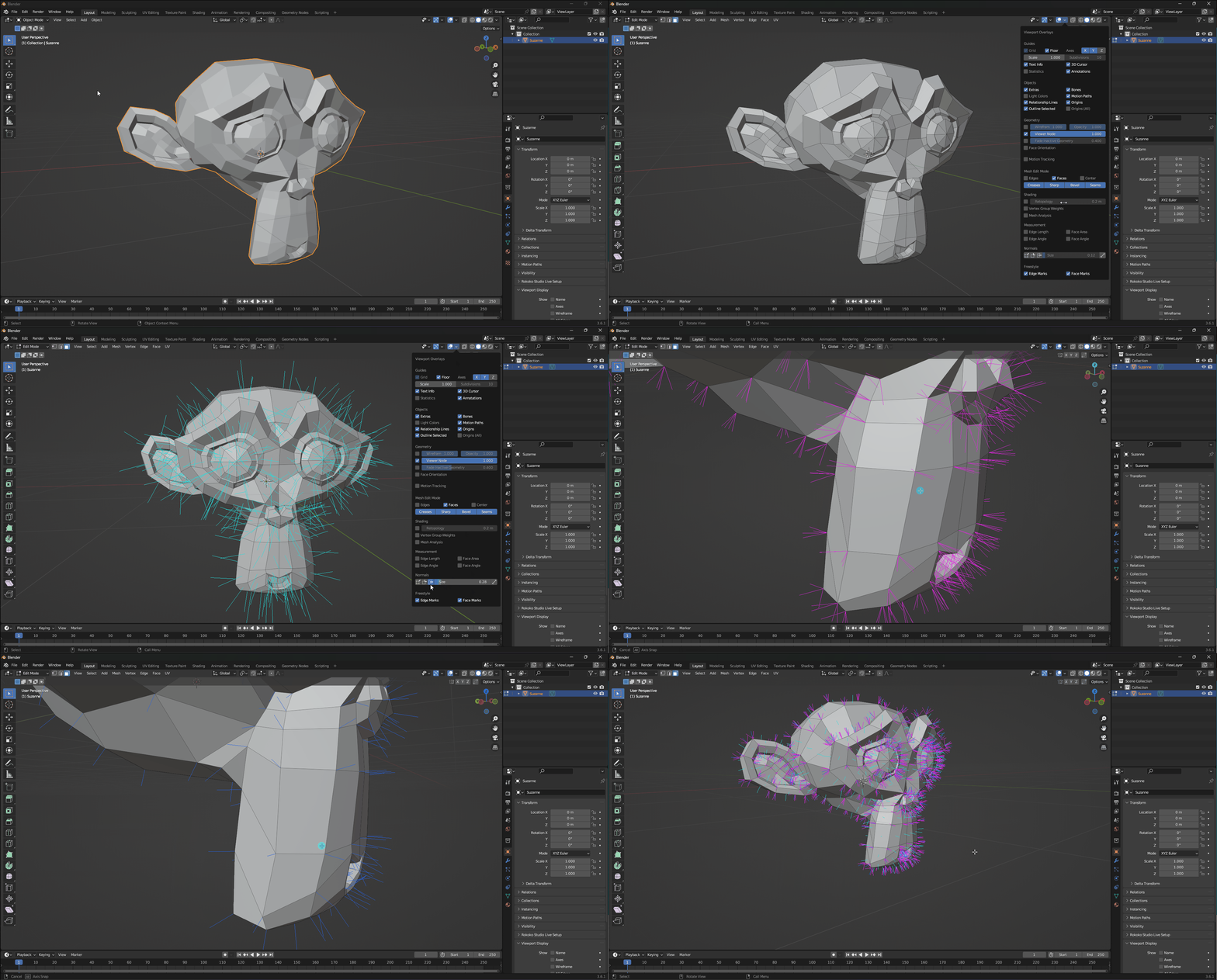
You can check the normals of a mesh when in edit mode using the Viewport Overlays. You can check for the face, split, and vertex normals of your mesh.
Topology
Check the flow of your model to make sure it will not have any unexpected look with materials or lighting and can easily have accurate LODs generated from it.
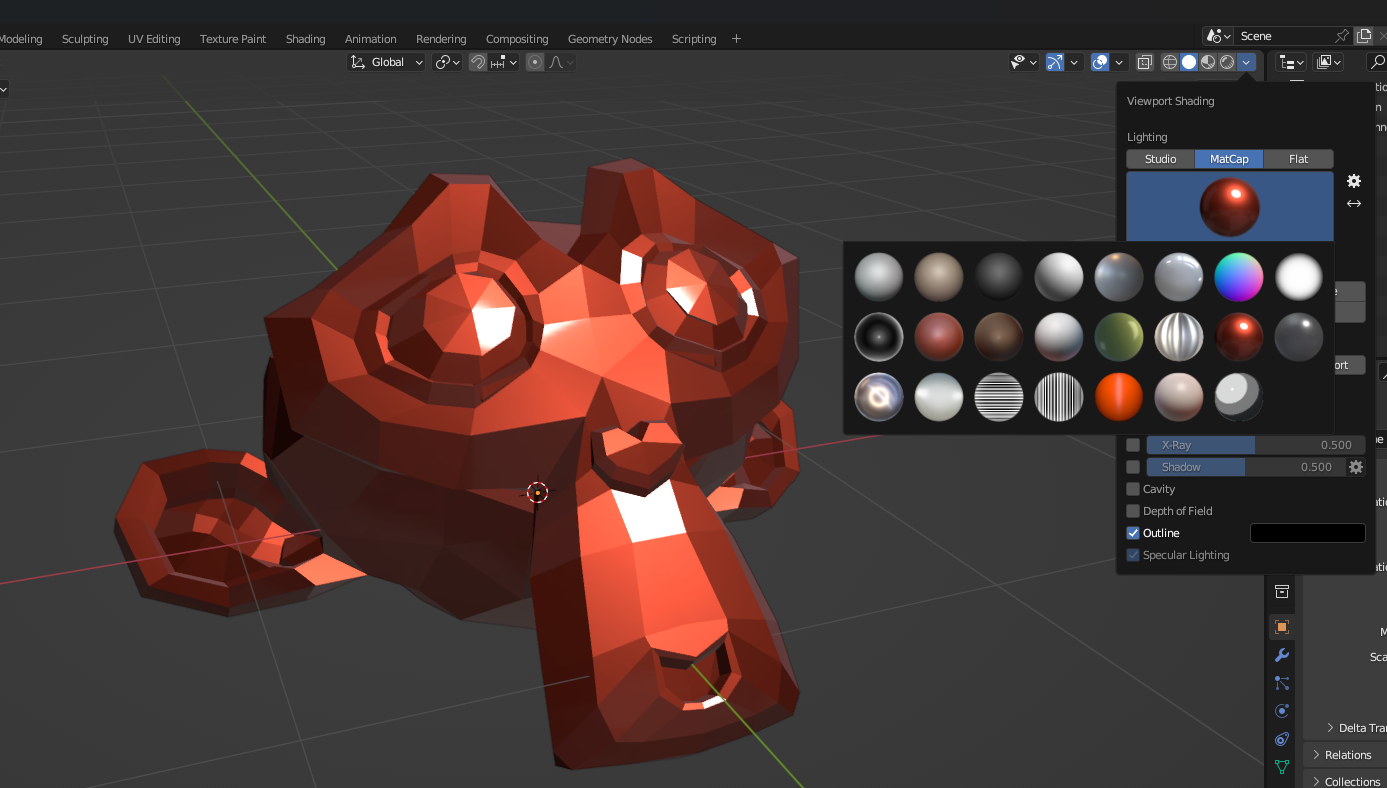
One way to help check topology flow is using a MatCap to see how light and reflections will play on the mesh. If something has strange angles for lighting it can usually point to a topology issue.
Make sure in Solid viewport shading mode and not shaded. To enable matcap go to the top right and select the Viewport Shading dropdown and select MatCap under lighting. Then click the material to pick a matcap that can help show reflections and lighting, the metallic red one is a good start.
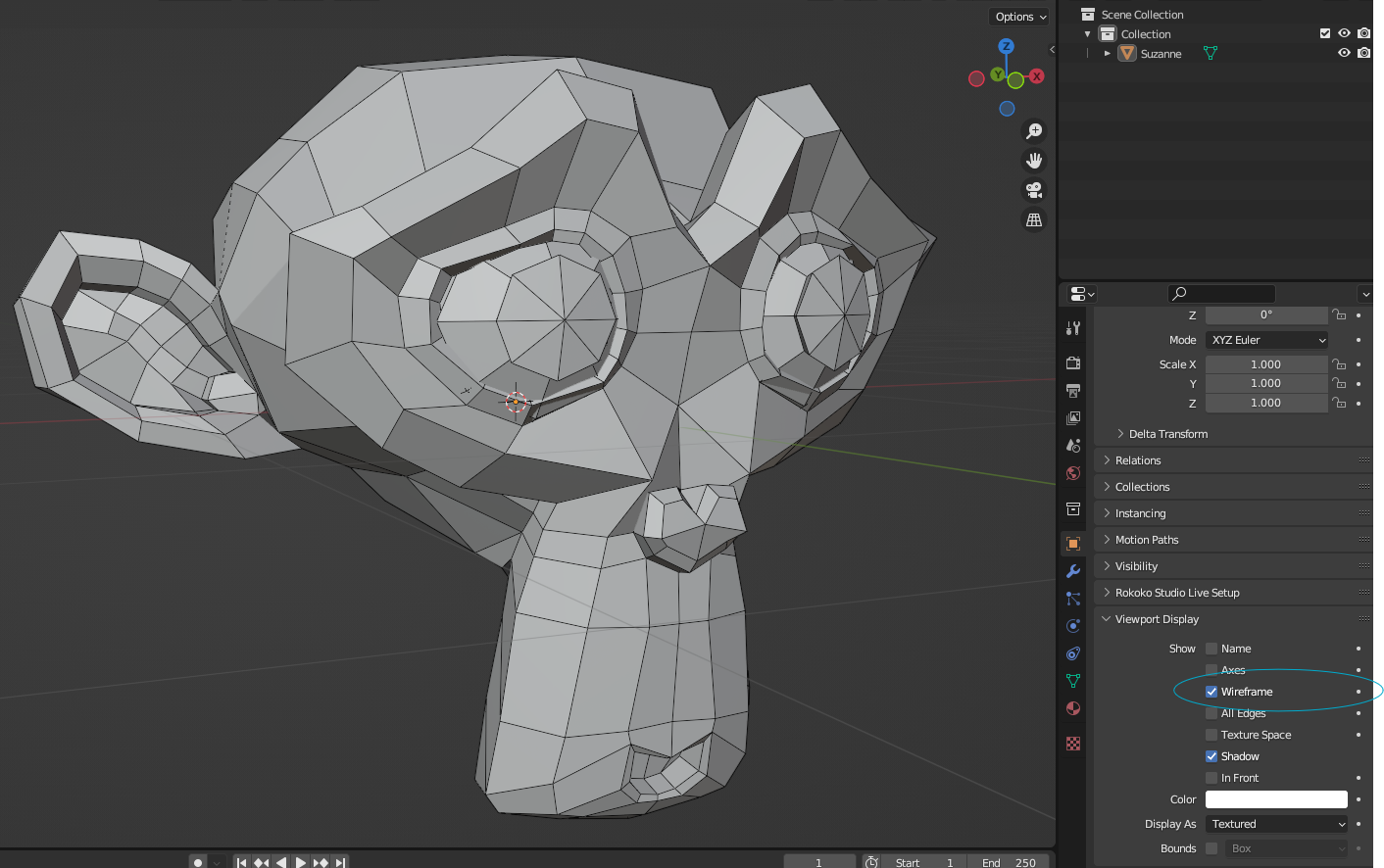
Another check is to make sure the mesh flows in a nice grid like pattern if using quad modeling. You can check the wireframe on top of the 3d mesh to get a better view of what is going on. If modeling with triangles checking the mesh flow is a bit harder, but mainly want to look out for drastic size changes and varrying skewing of the triangles.
To show the wireframe, select the mesh and go to Object Properties -> Viewport Display and select the Wireframe checkbox.
Pole Junctions
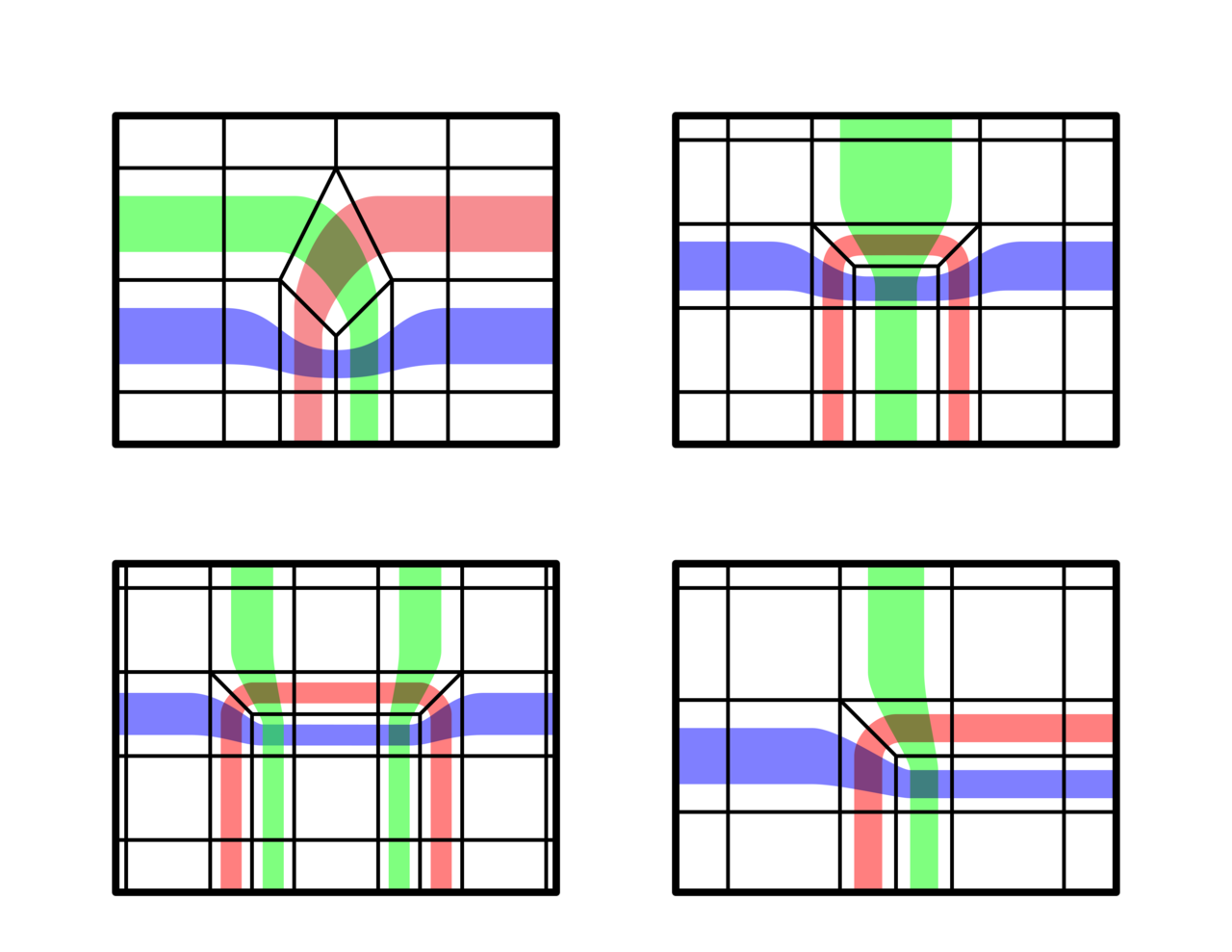
N-gons in your mesh can introduce poles. These arise when a vertex has 3, 5, or more edges connected. Here is a cheat sheet guide for how poles can affect the flow of your topology.
Ensure Closed Meshes
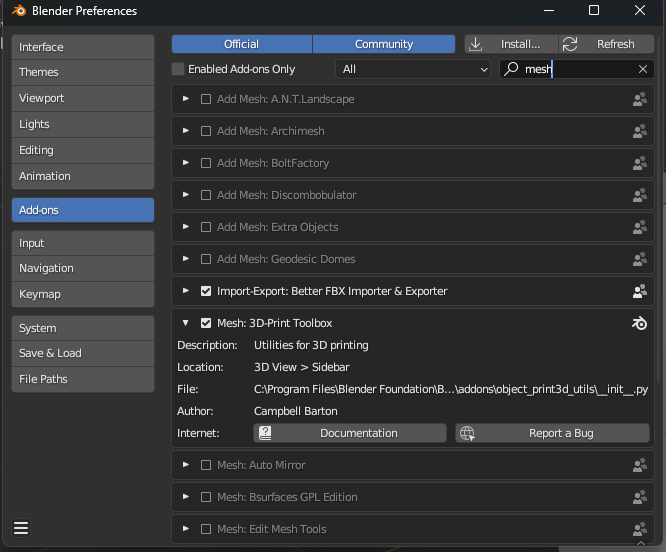
When using Blender there is a built in addon that you can enable and will check for holes in your mesh, Mesh: 3D-Print Toolbox. Select your mesh and it will show in the sidebar, select 3D Print and under checks use Solid. Check here for more information.
An example of a cube with a missing face when checking for solid meshes.
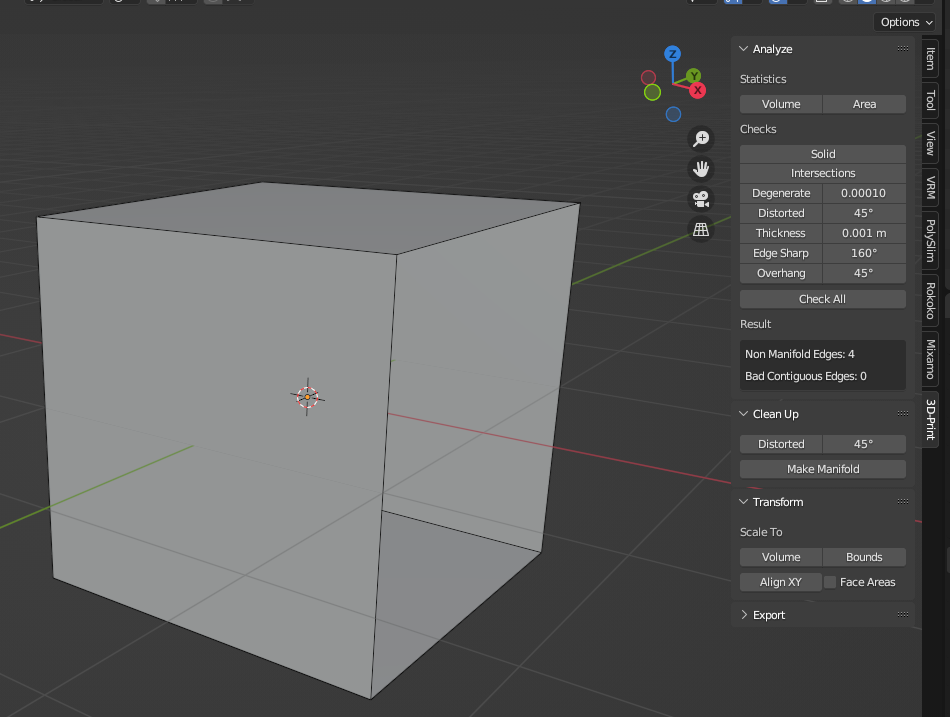
When modeling sometimes extra extrudes happen or excess vertices are left hanging around. To help prevent excess vertices causing problems you can try to merge vertices by disctance to make sure all of your meshes are closed or use the fill holes operation.