Materials Creation Tips
We support for the PBR (Physically Based Rendering) materials and VRM MToon material setups.
| PBR | Unlit | Toon | |
|---|---|---|---|
| FBX | ✅ | ❌ | ❌ |
| glTF 2.0 | ✅ | ✅ | ❌ |
| VRM | ✅ | ✅ | ✅ |
Common Material Properties
Double Sided/Backface Culling
Sometimes for materials you will want them to have their backface or inside faces visible when looking through them. Generally this will only apply when dealing with transparent or cutout materials, but if your model has open faces you may want to consider this as well.
- Frontface: The side of the polygon that is visible to the camera. Normals are facing the camera.
- Backface: The side of the polygon that is not visible to the camera. Normals are facing away from the camera.
| Backface Culling | Double Sided | |
|---|---|---|
| Frontface | ✅ | ✅ |
| Backface | ❌ | ✅ |
When backface culling is turned OFF (double sided), the backface of the polygon will be visible. This means that even if the normals are facing away from the camera, the polygon will still be visible.
To simplify, here's an example of an opened cube with backface culling turned OFF (double-sided) and ON (single-sided), respectively:
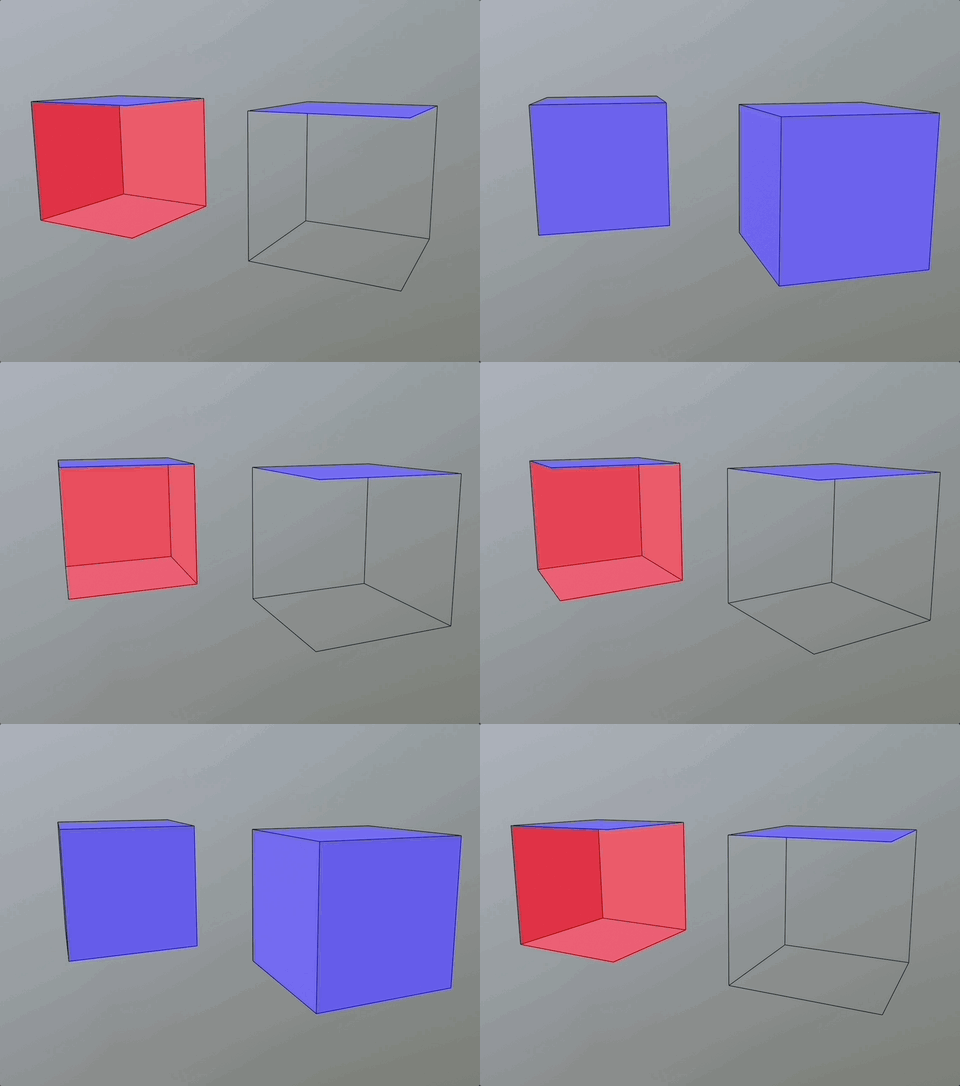
You notice that the first opened cube has it's interior faces visible (shown as red to indicate normals facing away the camera). And the other one you can only see the exterior faces (both shown as blue to indicate normals facing the camera).
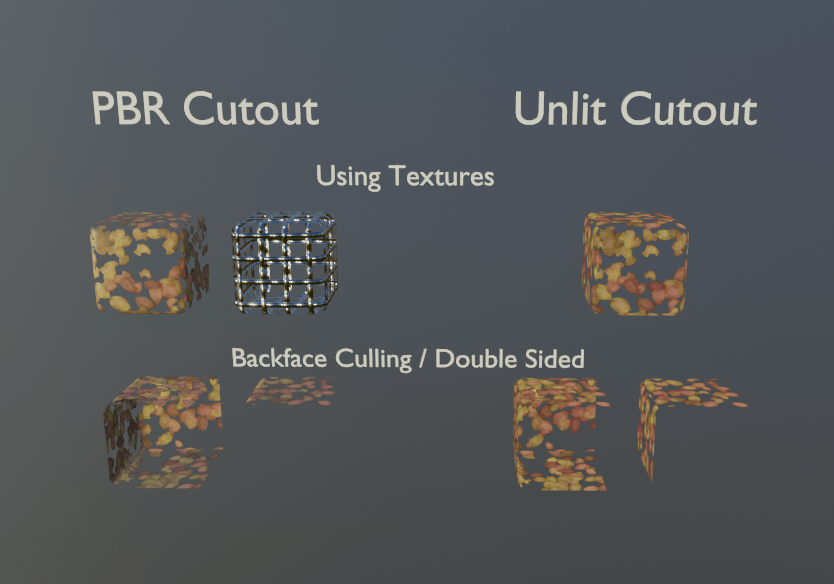
If you are wondering how this affects transparent materials, here is an example of a cutout material with backface culling turned OFF (double-sided) and ON (single-sided), respectively:
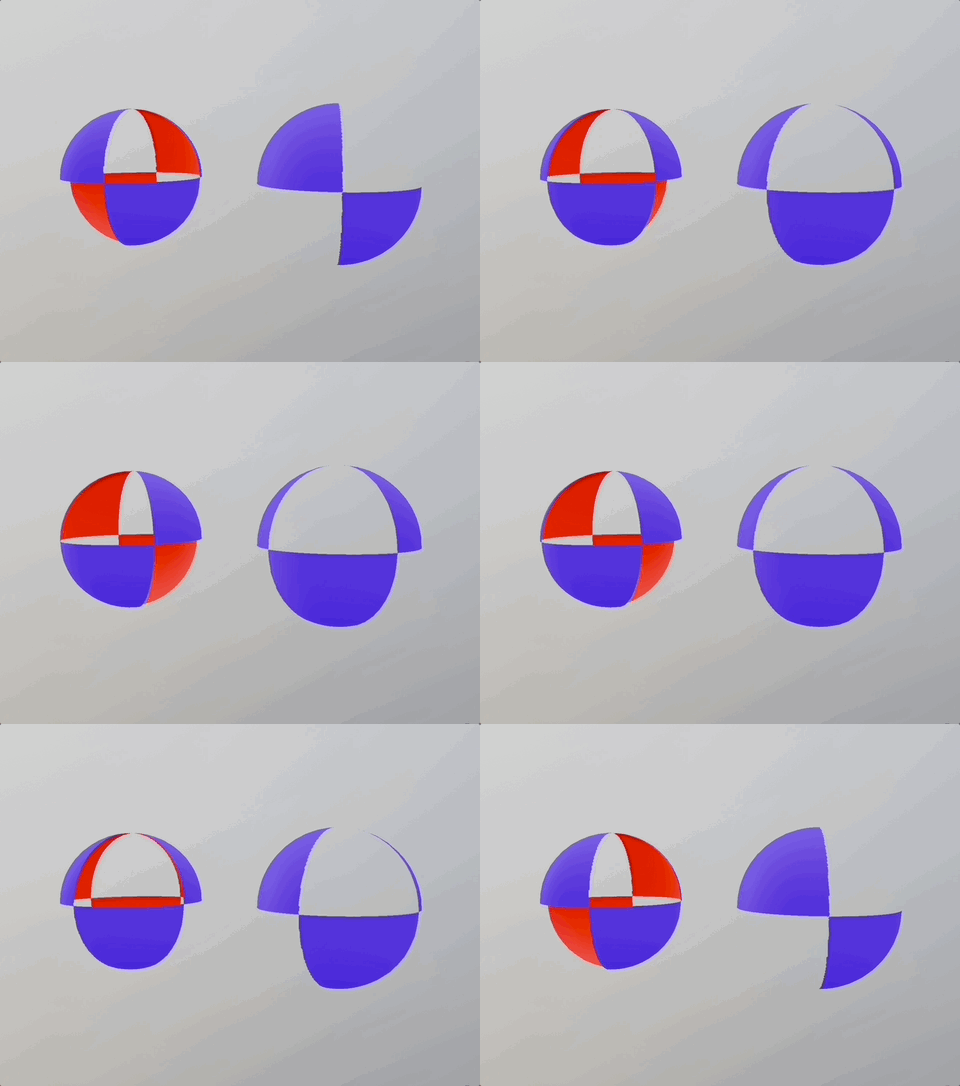
The example above uses a cutout material. You might need to experiment with the setting to get the desired result.
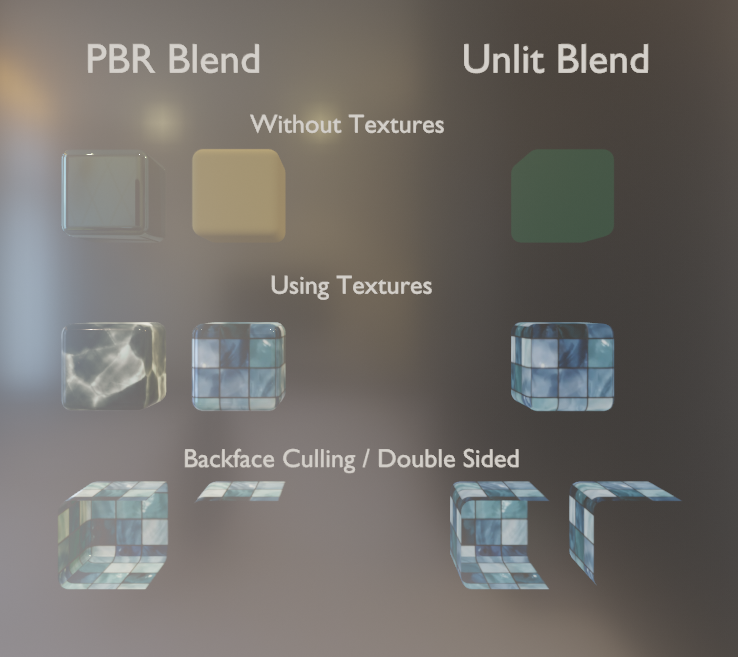
Now here is an example of a transparent blend material with backface culling turned OFF (double-sided) and ON (single-sided), respectively:
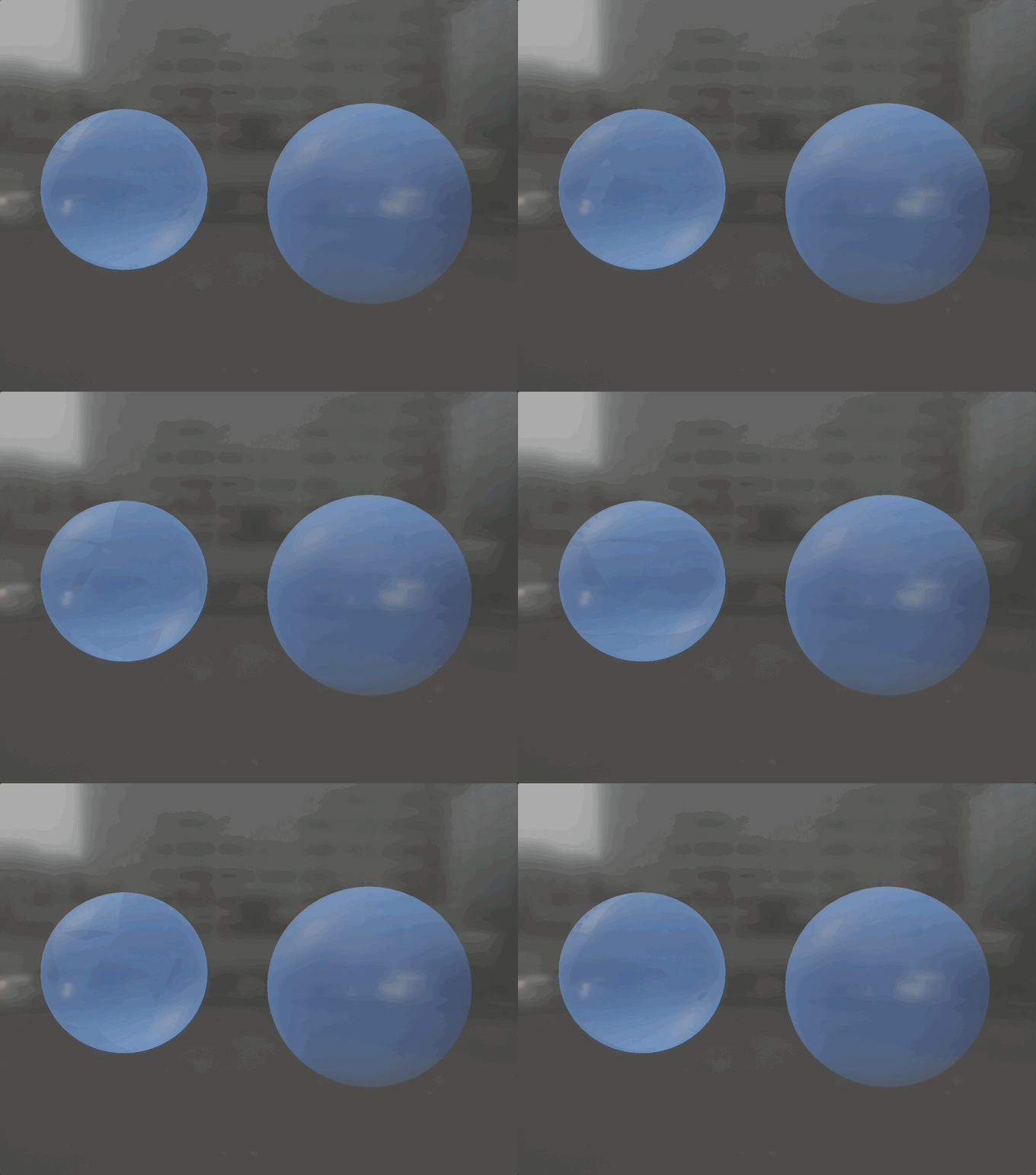
For transparent blend materials, the backface culling setting might not work as expected. In almost all cases, it is recommended to use single-sided materials. If you need to use double-sided materials, make sure you know how it will affect your model.
Material Types
Opaque
This is for objects that don't need to be seen through. This is the most basic and common of materials generally used.
| Texture Maps | PBR | Unlit |
|---|---|---|
| Base Color | ✅ | ✅ |
| Roughness/Smoothness | ✅ | ❌ |
| Metallic | ✅ | ❌ |
| Emission | ✅ | ❌ |
| Normal | ✅ | ❌ |
| Ambient Occlusion | ✅ | ❌ |
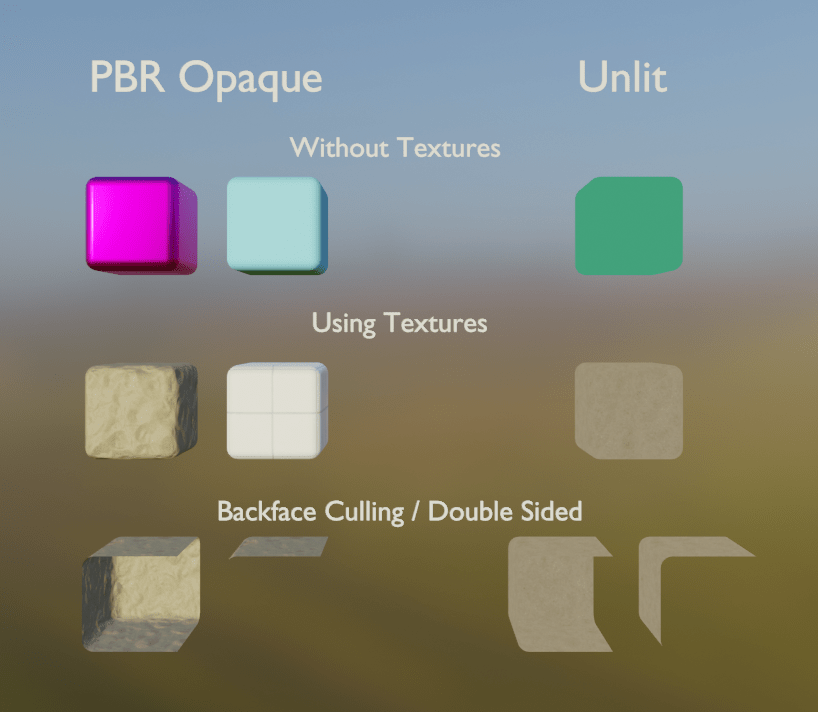
Examples
Transparent/Alpha Blend
For objects that you want to be able to be seen through with varrying degree. This could be things like glass, rubber, plastic, etc.
If using Unlit embed the alpha channel into the base color to be used.
| Texture Maps | PBR | Unlit |
|---|---|---|
| Base Color | ✅ | ✅ |
| Roughness/Smoothness | ✅ | ❌ |
| Metallic | ✅ | ❌ |
| Emission | ✅ | ❌ |
| Normal | ✅ | ❌ |
| Ambient Occlusion | ✅ | ❌ |
| Alpha | ✅ | ❌ |
Examples
Cutout/Alpha Clip
For when you are wanting to make a lighter weight item that has certain parts solid and other portions not visible, like leaves for a tree.
If using Unlit embed the alpha channel into the base color to be used.
| Texture Maps | PBR | Unlit |
|---|---|---|
| Base Color | ✅ | ✅ |
| Roughness/Smoothness | ✅ | ❌ |
| Metallic | ✅ | ❌ |
| Emission | ✅ | ❌ |
| Normal | ✅ | ❌ |
| Ambient Occlusion | ✅ | ❌ |
| Alpha | ✅ | ❌ |
Examples
Unlit
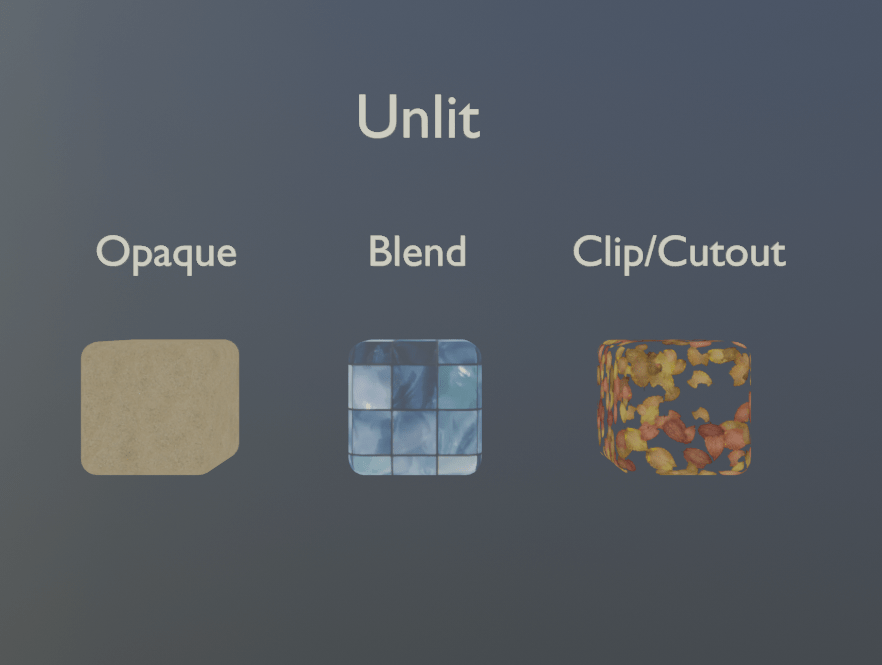
For making an object a set color and look always. This won't be impacted by reflections or shadows as much as a regular material. Examples would be like an anime or cartoon character cell shaded look. When applied with an inverted mesh you can give the look of an outline to an object (note: it will double your polygon count).
| Texture Maps | Unlit |
|---|---|
| Base Color | ✅ |
| Alpha | ✅ |
Examples
MToon
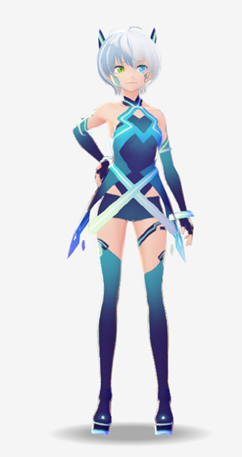
For use only in VRM Avatar files. It gives the cartoon cell shaded look along with outline support. To know more about the MToon material setup please follow here.
| Texture Maps | MToon |
|---|---|
| Lit Color | ✅ |
| Shade Color | ✅ |
| Additive Shading Shift | ✅ |
| Normal | ✅ |
| Emission | ✅ |
| Matcap Rim | ✅ |
| Rim Color | ✅ |
MToon Examples
Combining Material Types
You can use multiple material types in your assets. Depending what you are making you might need a wide range of opaque and transparent materials and maybe even some unlit. There are a few things to keep in mind for how to keep them separated so your objects will render as you would expect in a game.
- Keep Opaque, Transparent, and Cutout materials separate. If you only need a part of a mesh to be see through, assign a transparent material for only those faces, separate from your other opaque material.
- Check your model and how it looks from multiple angles. Sometimes with multiple materials the object can look strange or have parts obscured when viewing at different angles. Usually if parts are clipping through or displaying above parts of your model at different angles, some materials should be set to opaque or need to be split out; it will vary by model.